

PDF score practice
How to practice a PDF score measure by measure
After the access notice and system file picker, a fresh PDF import opens three required setup screens. Complete all three before choosing Measure view or Full page.
Read guideMeasure-first score viewer
Import a score photo (JPG/PNG) or PDF only if you have the right to use it. Review and correct the measure boxes, then set timing, repeats, and playback order.
Set the order and timing once, then SheetCue automatically advances through each measure while you practice—without tapping for every bar.
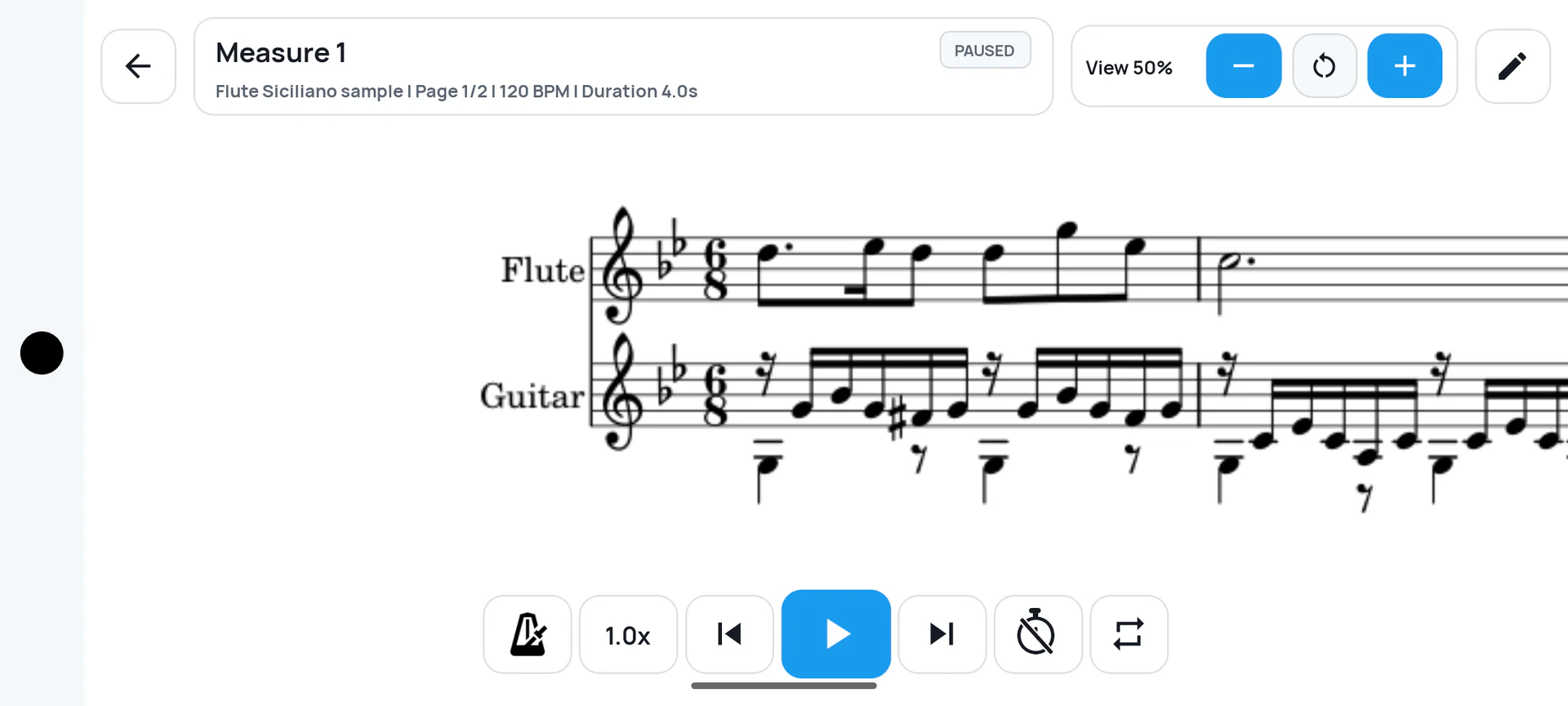
Just your phone
Practice measure by measure without bringing a tablet or a second screen.
PDFs or photos
Bring in the score files and images you already use.
Timed measure flow
Move forward by the order and timing you set, without tapping for every measure.
Start from the score you already have. Add score offers PDF file, Photos & images, and SheetCue file in one place in your score library.
Tap Add score, then choose PDF file or Photos & images.
Return to a simple library instead of rebuilding your setup.
Choose SheetCue file under Add score to reuse a saved setup.
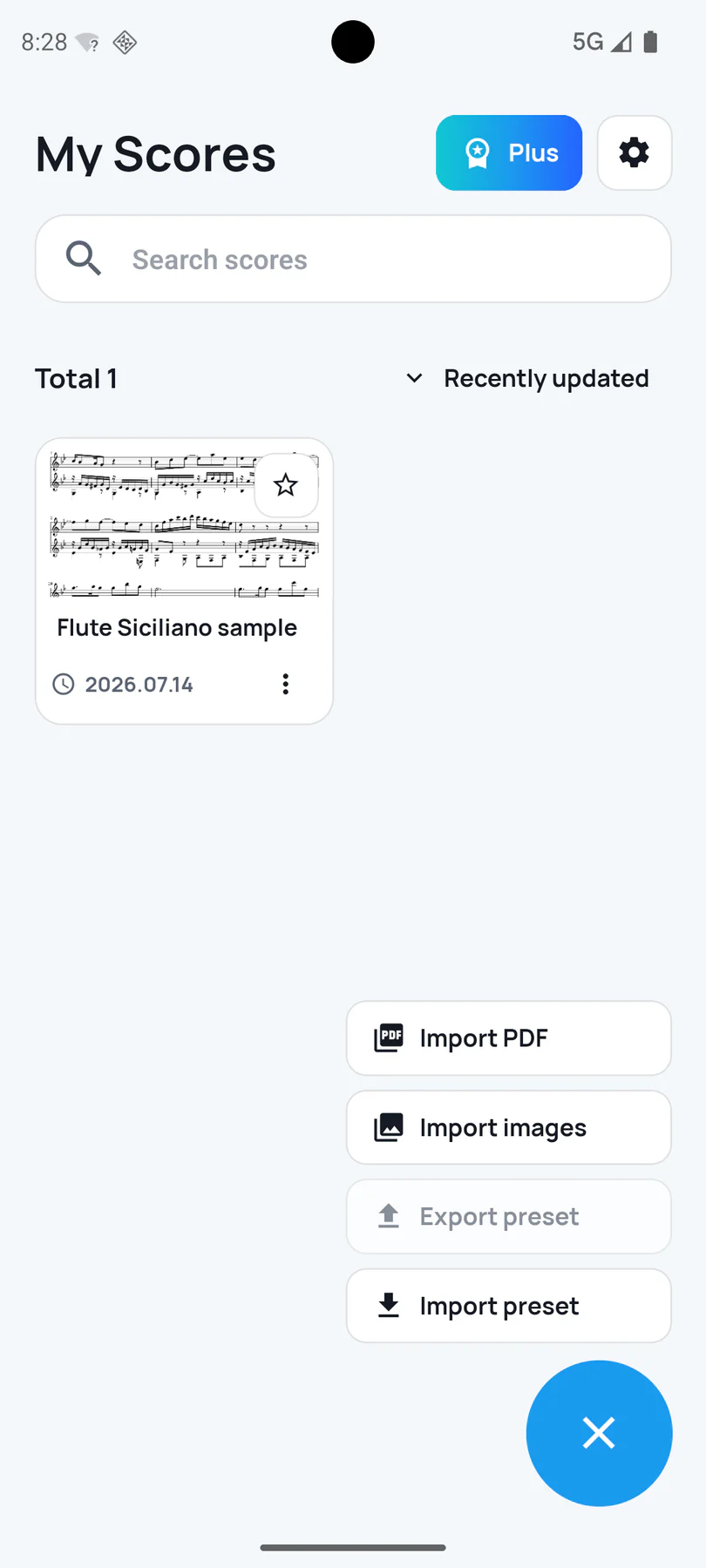
Screen from SheetCue 1.2.5. In 1.8.1, the Add score button replaces this menu.
Define the musical area, add the boundaries that matter, and check the resulting measures before practice starts.
Frame the staff line you want to turn into practice cues.
Place measure divisions where the printed score needs them.
See the finished measure boxes and correct them directly.
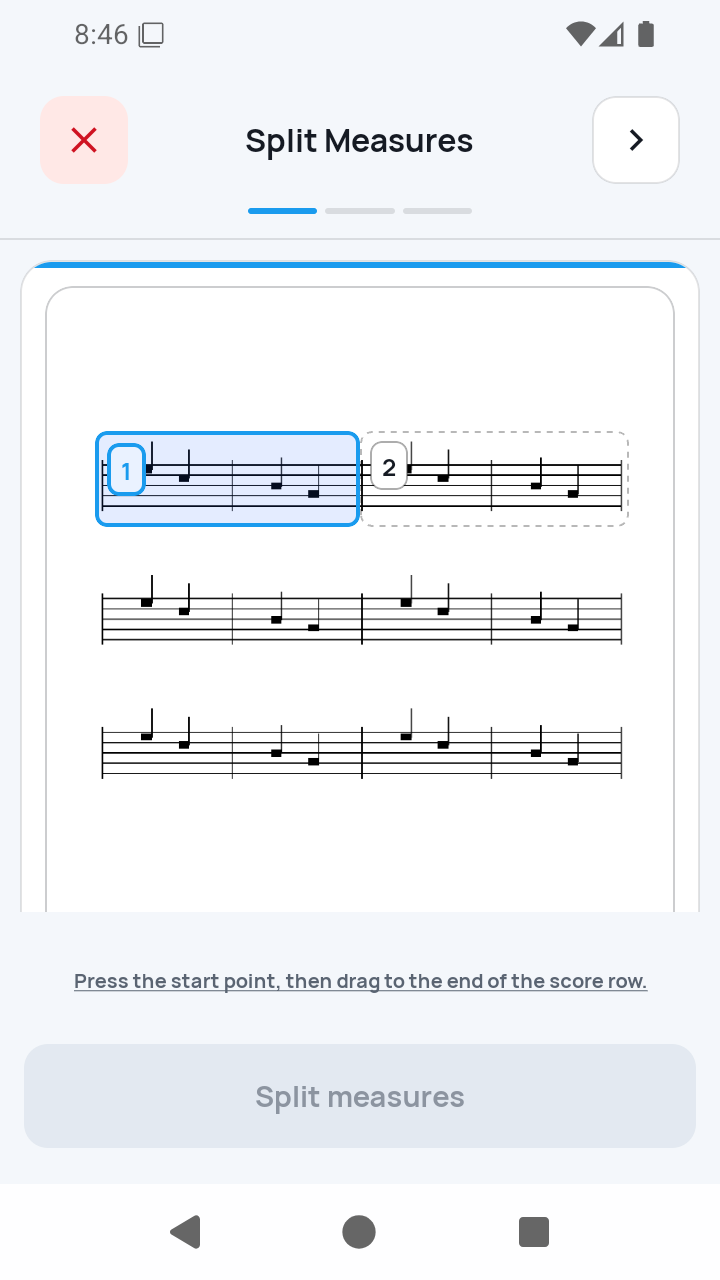
Step 2 builds the rehearsal sequence. Step 3 asks for the Preset title, Default tempo (BPM), and Beats per measure, then you tap Complete.
Continue from page 2 back to page 1 when the music calls for it.
Add repeated measures to the sequence you will actually play.
Enter title and timing, then tap Complete to finish the import.
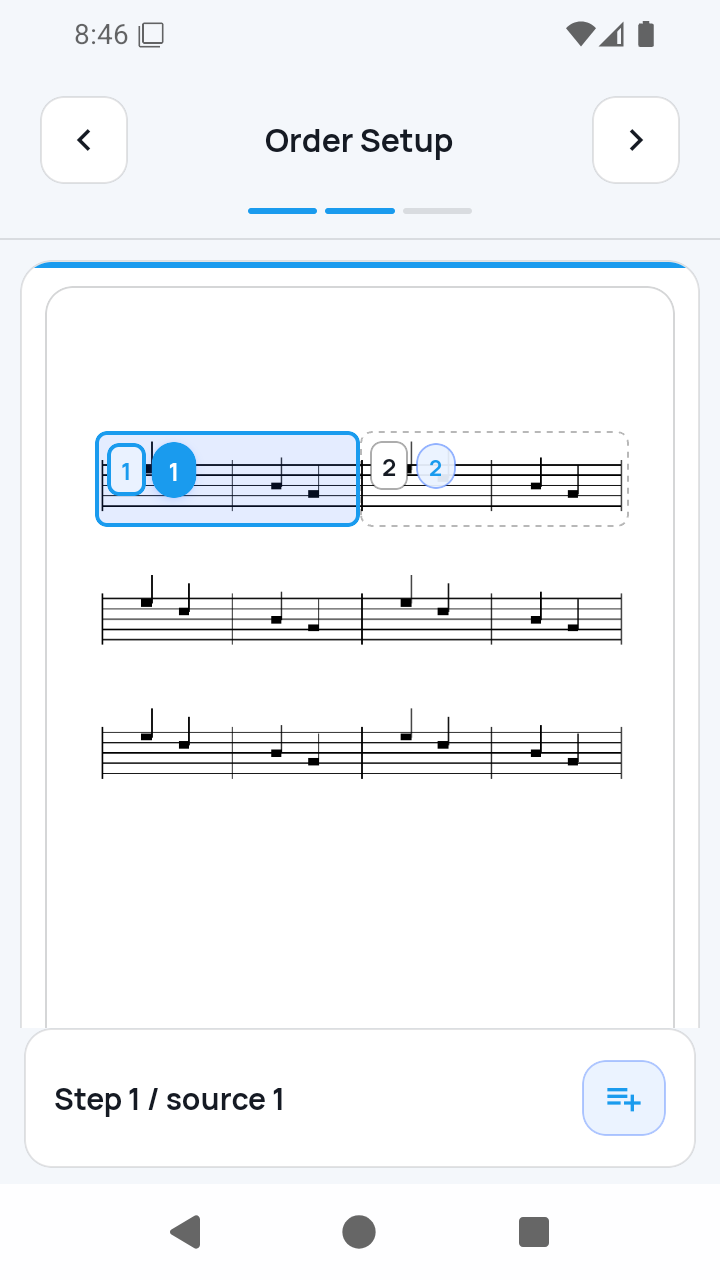
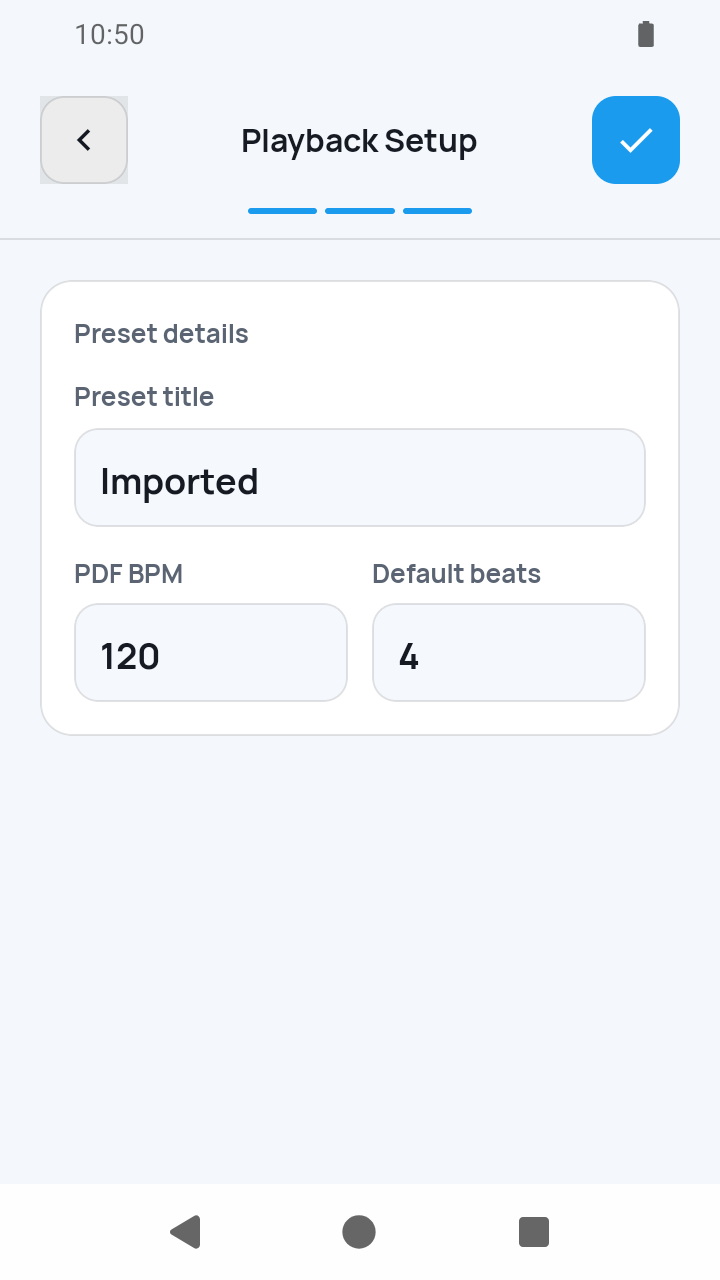
Screens from SheetCue 1.2.5. In 1.8.1, step 3 shows Default tempo (BPM), Beats per measure, and Playback time per measure, and finishes with Complete.
SheetCue guides
Follow the SheetCue workflow through import, measure correction, timing, playback order, annotations, practice speed, local storage, and preset transfer. Feature content is checked through 1.8.1. Screens were not recaptured: the annotation and speed guides use verified 1.6.2 screens, established flows retain verified 1.2.5 screens, and captions name the 1.8.1 labels where they differ.
PDF score practice
After the access notice and system file picker, a fresh PDF import opens three required setup screens. Complete all three before choosing Measure view or Full page.
Read guideMeasure box editing
Measure Edit is the hub for two different jobs: Crop Edit changes existing boxes, while Split Measures redraws a whole staff row.
Read guideImport troubleshooting
Troubleshoot the actual four checkpoints: access and rendering, 1/3 Split Measures, 2/3 Order Setup, and 3/3 Playback Setup.
Read guideBeginner phone practice
If your teacher gave you a lawful photo or you photographed music you may digitize, start with one page. SheetCue turns ordered images into a local PDF, then you choose the measure boxes, timing, repeats, and practice order yourself.
Read guideAfter file selection, complete all three setup screens in order: Split Measures, Order Setup, and Playback Setup. Tapping Complete makes the score ready for timed practice.
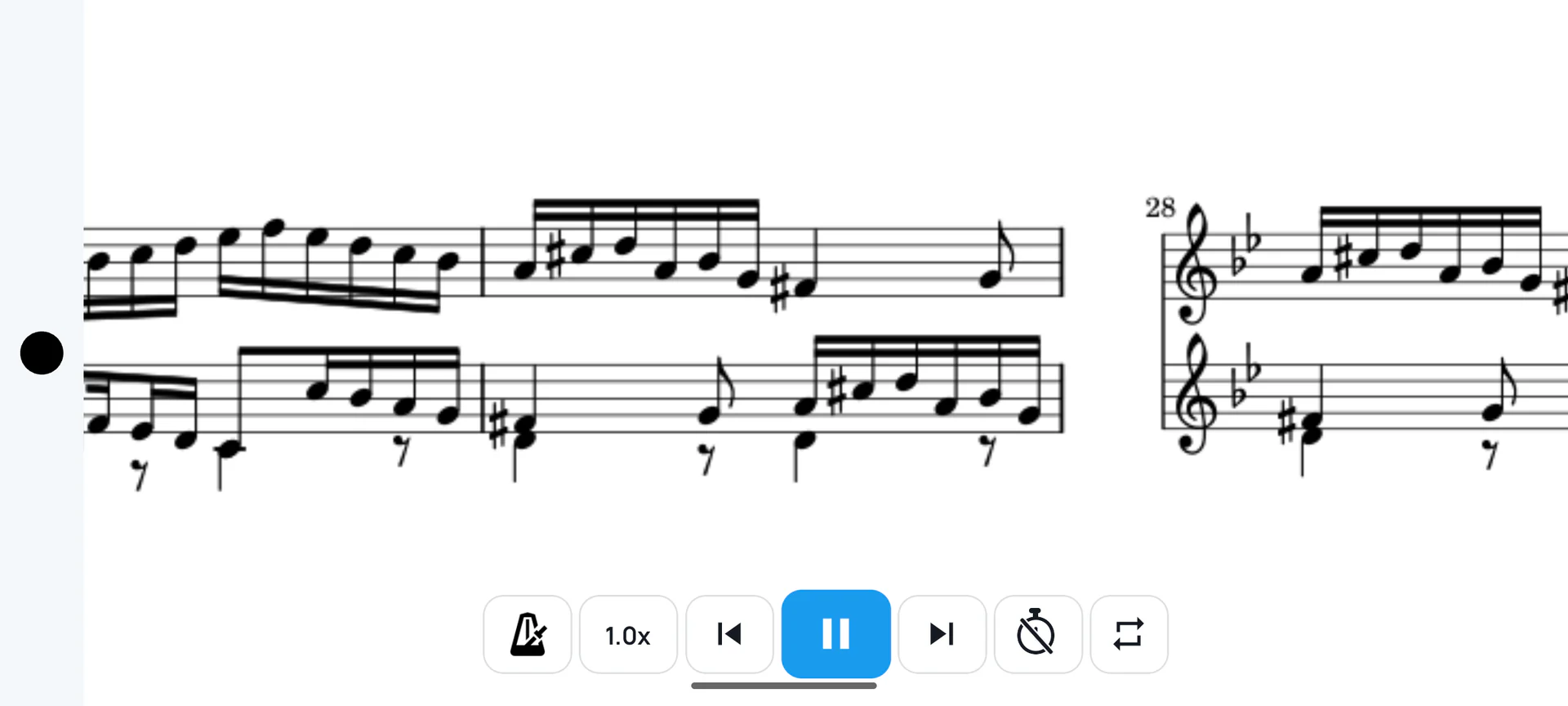
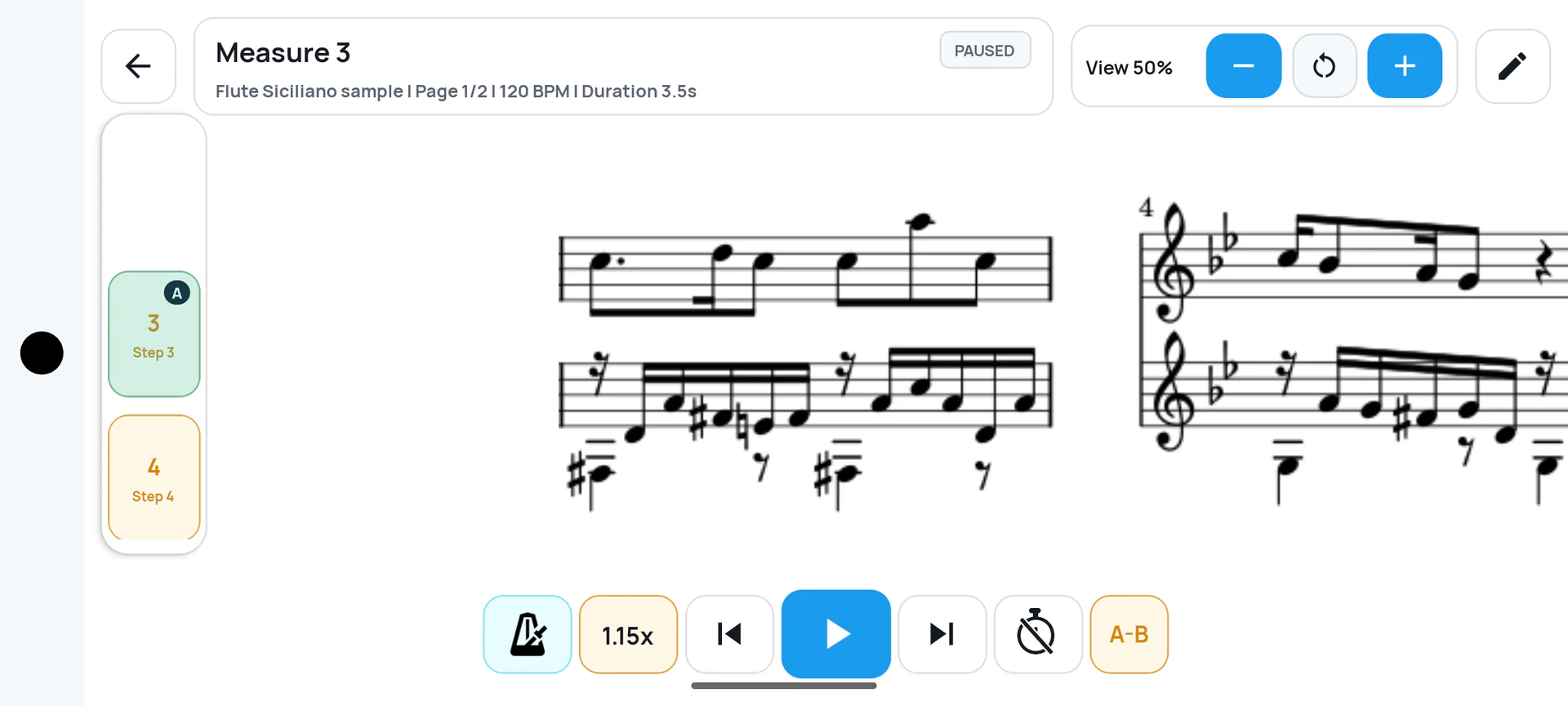
A–B loop for the passage that needs work · metronome · current-measure duration display · speed
Choose a PDF score or ordered photos.
Draw staff rows and place measure boundaries.
Set the route, page returns, and repeats.
Enter title, BPM, and beats, then tap Complete.
Follow each timed cue with your tools close.
Imported score photos and PDFs, rendered pages, cropped measure images, and preset metadata are stored locally on your device. SheetCue does not create accounts or upload score files. Separately, Google Mobile Ads and Google UMP may process advertising, consent, and device data; see the privacy policy for details.
No. SheetCue stores imported score photos and PDFs, rendered page images, cropped measure images, and preset metadata locally on your device. It does not upload score files.
Yes. Use the store buttons on this page to open the current Google Play and App Store listings for SheetCue.
No. SheetCue is local-first and does not include user accounts, cloud sync, or remote score storage.
No. SheetCue focuses on editable measure cues and user-controlled playback flow, not audio-based real-time score following.
Score processing does not require a backend service. The app includes Google Mobile Ads and Google UMP consent handling as documented in the privacy policy.
Download SheetCue free and start with a 14-day SheetCue Plus free trial if eligible, as shown in the App Store or Google Play. Score photos and PDFs are processed on your device.